

David's
<Tech Repair\>
Your friendly neighborhood IT Guy
davidstechsupport
Starting your digital assistant
This page is split into the following parts:
Before you get into it, please understand that this is from my personal experience working on RISE, my digital assistant. Any software, extensions, and tools here are what I use.
I will also explain everything along the way for easy understanding.
NOTE!!! I recommend using a computer to view this page due to the amount of code at the bottom; it will be easier to follow along.

Introduction
So, you want to get started on your very own digital assistant? You've picked a great place to start. Now, before we get into this, there are some things you need to understand about this page.
-
This is not a full guide for building an assistant from start to finish; this is just for getting started.
-
I will provide some of my own personal code to help you get started
-
I am still working on RISE at the time of this page and will add updates as my work continues
Alright, now that we got that out of the way, let's get started on what you need to begin your project.
For a boost, you can visit my GitHub and use some of the modules I have built for public use: https://github.com/Dtownsend117
Software
This is what I use for RISE, theres not a whole lot of software that goes into a digital assistant since the magic happens with the code.
-
Visual Studio Code
This is the editor that all the code goes into, to easily explain it, you type code, press RUN, and BOOM, your code exicutes the commands you gave it
-
Python 3.10 (this is the version I use)
It makes coding easier, faster, and more powerful. It’s simple to learn, has thousands of helpful libraries, and is widely used for AI, automation, websites, apps, and digital assistants.
-
PIP updated to the latest version, use this code in command prompt or a terminal to upgrade to the latest version:
python -m pip install --upgrade pip
PIP is what supplies Python with packages that allow the assistant or project to run and complete tasks, packages like "Speechrecognition" are what allow python to hear verbal commands
Visual Studio Code Extensions
I use a few extensions, and I'll share them with you and what they do, some are just cosmetic while others are actually helpful
-
Low Eye Strain Dark neon - Helps keep my eyes from getting sore after long sessions
-
Better Comments - This allows you to leave better notes in your code
-
Boookmarks - Navigate your code more easily
-
Image Preview - Adds a small version of anyimages from your code to the left-hand side next to the line number
-
Code Spell Checker - I know I need an assist with the spelling from time to time
PIP Packages
There are a lot, and I mean A LOT of PIP packages that I have (nearly 700 that I have installed over time at the time of writing this page) but I am only going to list the essential ones to get you started and explain each for you
-
speechrecognition - Converts voice to text
-
openai - Connects AI models and chat systems
-
keyboard - Detects keyboard shortcuts
-
pyttsx3 - Converts text to chat
-
requests - Internet and API requests
-
pyaudio - Input for microphone audio
-
pyautogui - Controls the mouse and keyboard
-
flask - Optional web dashboard and API
-
python-dotenv - Stores your API keys
Here are a few commands to know for the packages:
-
Upgrade PIP: python -m pip install --upgrade pip
-
PIP list: This will list every package you have installed
-
PIP install: This will install packages
-
pip install --upgrade "package_name": This will check for updates to installed packages
-
pip list --outdated: This will display any outdated packages
-
pip show "package name": this will display information about a specific package
Application Programming Interface (API)
What is an API? An API is a set of rules and protocols that allows different software applications to communicate and share data with each other. It acts as a middleman or "bridge," enabling one program to request services or information from another without needing to know how that other program is built.
Why are they important? API's are important because they act as a bridge that allow your code to communicate with other software, databases, or web services. For instance, I use the Gmail API, this allows me to get my emails directly through RISE without the need to open the website or app.
Heres the ones I currently use (as of writing this page)
-
Gmail: Integrates your gmail inbox to the project
-
OpenWeather: Imports weather information
-
WolframAlpha: Useful for math and academic projects
-
Spotify: Music Player
-
NewsAPI: Imports the news
There are dozens of API packages out there to use, you just have to decide what your project will be and what packages you will use.
Website Scraping
What is website scraping? It's the process of using automated scripts to extract data from websites.
This is useful because it allows python to collect and import large amounts of information such as news, prices, weather, search results, or updates in real time
Setting up hardware
Setting up your hardware for python is very simple, really the only hardware you will need is a keyboard, mouse, webcam, and microphone.
I personally don't use a webcam yet for RISE but may in the future. The mouse and keyboard are for typing and clicking while the microphone is used for verbally inputing commands.
Now in order to actually use a microphone to input commands, you will need to set it up inside of the code. This is easy as you only need to add the following line near the top of your code:
with sr.Microphone() as source:
or if you want to use a specific mic, use this code:
mic = sr.Microphone(device_index=1)
Navigate to the my examples sections to see where you should have it
Keywords and Comments
There are dozens of keywords used in Python, I will explain the most important ones that I use.
-
This will display the result as text in the terminal
speak
-
This will speak the result back to you through te speakers
def
-
Creates a function
if
-
Checks to see if something is true
elif
-
"else if" Checks another condition
break
-
Immediatly stops a loop
from
-
Imports part of a module
else
-
Runs if the other conditions are safe
import
-
Adds modules and libraries to the code
for
-
Creates a loop
while
-
Repeats while something is true
return
-
Sends a value back from a function
class
-
Creates an object/class blueprint
try
-
Tests the code for any errors
except
-
Handles errors
pass
-
This is just a placeholder and does nothing
continue
-
Skips to the next loop cycle
and
-
Both conditions must be true
or
-
Only one condition must be true
not
-
Reverses a condition
true/false
-
Boolean values
None
-
Repesents no value
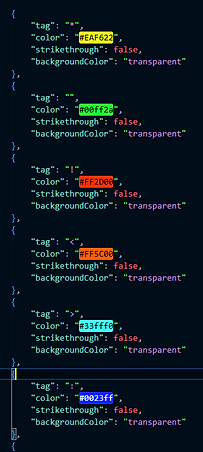
There are some ways to block a line from being used without removing it from the code, all you need to do is add a "#" (also known as a comment) to the beginning of the line. Not only does this block the line from being used, you can actually change the color of the line too. I do this to leave myself notes and cross out lines that are no longer needed but are good to look back at. To change the color of the lines, do the following:
In Visual Studio Code, search the following "C:\Users\YOURUSERNAME\AppData\Roaming\Code\User" this will open the user settings for the studio
Now scroll down until you see something like the image here:
Now all you have to do is add the options you want, just follow the way that the code is setup (the options being encased by {},) and you will have all the comment colors you want. I would reccommend adding a key at the top your assistant code to remember what each option is for and its color.
How to convert the assistant to an EXE file
This is for when you complete the assistant and want it to be a full program instead of a file. This will turn the Python file into an Executable file (exe) that will allow your new assistant to launch and operate without any extra software running alongside it. The process is pretty simple and only requires a few minutes to initiate then the rest of the time will depend on the speed of your computer.
Step 1: Get the PIP package "Pyinstaller"
Step 2: Navigate to the folder that stores your project then run the following command:
pyinstaller --onefile main.py
My Examples
Here is an example module from my personal collection, it is a basic internet search module. It works like this, you say something like search (website) for (query) and the module will open that website and display the result as if you manually opened and search the site yourself.
The explanations for each line will be in blue
import speech_recognition
Allows the assistant to hear what you say
import pyttsx3
Allows the assistant to talk back to you
import pywhatkit
Allows the assistant to search google and other sites
import wikipedia
Searches Wikipedia
import webbrowser
Used to open your default web browser
def takeCommand():
Creates the function, this specific ones listens for verbal input
r = speech_recognition.Recognizer()
Processes and understands audio
with speech_recognition.Microphone() as source:
Activates the microphone for verbal input
print('Listening...')
Displays the text inside of the ()
r.pause_threshold = 1
How many seconds the assistant will wait after verbal input stops
r.energy_threshold = 300
This is the microphone sensitivity, the higher the number, the less background noise is picked up
audio = r.listen(source,0,4)
Listens to the mic and records audio
-
Source: Mic input
-
0: Wait time before listening in seconds
-
4: How long the listening time is in seconds
try:
Catches errors safely
print("Understanding...")
Displays the text inside of the ()
query = r.recognize_google(audio,language='en-en')
Uses the Google speech recognition to convert the verbal input into text
print(f"You Said: {query}\n")
Diplays the text inside of the ()
except Exception as e:
This runs if an error happens, usually verbal input not getting recognized
print("Apologies, please say that again")
Diplays the text inside of the ()
return "None"
Returns NONE if the speech recognition fails
return query
Returns the recognized speech back to the module
query = takeCommand().lower()
Converts the result to lowercase to make the command check easier
engine = pyttsx3.init("sapi5")
Uses the Microsoft Windows voice system
voices = engine.getProperty("voices")
Gets the list of avaiable voices
engine.setProperty("voice", voices[3].id)
Selects one of the avaiable voices, change the "3" to use a different voice
engine.setProperty("rate",175)
Speed that the assistant speaks
def speak(audio):
Makes the assistant speak
engine.say(audio)
Adds the verbal response to the que
engine.runAndWait()
Runs the speech engine and waits until the verbal input is finished
def searchGoogle(query):
Creates the function that will perform the Google search
if "google" in query:
Listens for the trigger phrase to determine what website to use
import wikipedia as googleScrap
Imports Wikipedia but renames it to googleScrap
query = query.replace("rise","")
Removes the word "rise" from the search
query = query.replace("google search","")
Removes the phrase "google search" from the command
query = query.replace("google","")
Removes "Google" to get a proper search
speak("This is what I found on google")
Verbally tells the user the search is complete
try:
Begins another block for error handling
pywhatkit.search(query)
Performs the Google search in the borwser
result = googleScrap.summary(query,1)
Retrieves a summary from Wikipedia for the search
speak(result)
Verbally tells the user the result
except:
Runs if the search fails
speak("No speakable output available")
Verbally tells the user that the search result was not readable
The following follow the same rules as the Google portion of the code
def searchYoutube(query):
if "youtube" in query:
speak("This is what I found")
query = query.replace("youtube search","")
query = query.replace("youtube","")
query = query.replace("rise","")
web = "https://www.youtube.com/results?search_query=" + query
webbrowser.open(web)
pywhatkit.playonyt(query)
speak("Done, Boss")
def searchWikipedia(query):
if "wikipedia" in query:
speak("Searching Wikipedia...")
query = query.replace("wikipedia search","")
query = query.replace("search wikipedia","")
query = query.replace("rise","")
results = wikipedia.summary(query,sentences = 2)
speak("According to Wikipedia..")
print(results)
speak(results)
If you want to add more, just copy and paste one of the sections above and replace the website with the one(s) that you want to use
Closing
And that's all there is to it for starting a digital assistant, thank you for using my guide and checking out the site. I wish you good luck on you journey building your assistant.
Show me what you come up with by contacting me on any of my social media platforms or sending me an email through the support page.